IntervalNext User Guide
Set up IntervalNext
Install the field on your phone, add it to a data page on your Edge, then link your intervals.icu account. It takes about ten minutes, and you only do it once.
Before you begin
Make sure you have:
- A supported Edge, charged and turned on.
- Your phone, paired with the Edge in the Garmin Connect app.
- The Connect IQ app on the same phone, free from the App Store or Google Play.
- An intervals.icu account with a workout planned for today. The free plan is enough.
Install the field
IntervalNext is installed from the Connect IQ app on your phone.
- Open the Connect IQ app. Make sure your Edge is the device shown at the top. If it isn't, tap the device and choose your Edge.
- Search for IntervalNext, then tap Download.
- Keep the Edge turned on and near your phone. The field arrives with the next sync, usually in less than a minute.
When the install is finished, IntervalNext shows as Installed in the Connect IQ app. It's free to download; your 14-day trial starts when you link the Edge.
You can also install IntervalNext from a computer. Find it at apps.garmin.com, then install it with Garmin Express while the Edge is connected by USB.
Add the data page
IntervalNext fills a whole data page. Add it to each activity profile you train with, such as Indoor and Road.
- On the Edge, go to Menu > Activity Profiles, select a profile, then select Data Screens.
On an Edge 530, 540, 550 or MTB, go to Menu > Settings > Activity Profiles instead. - Select Add New > Data Screen, then choose the layout with one field.
- Select the field, then select Connect IQ > IntervalNext.
- Start an activity and swipe to the new page.
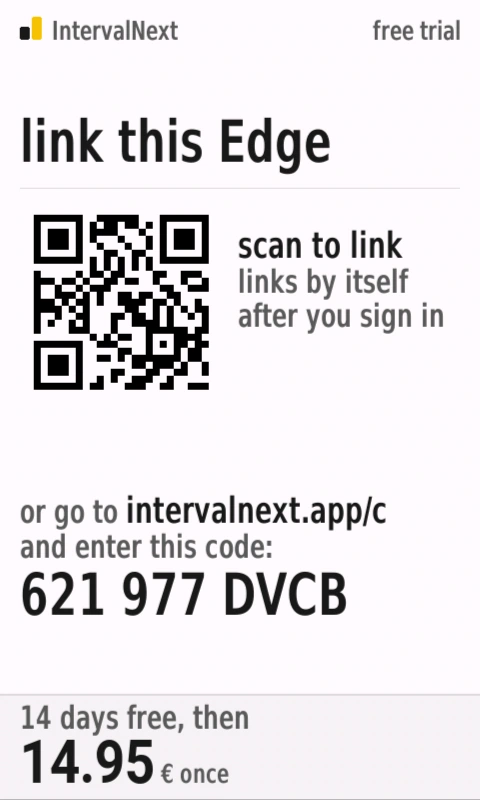
The page shows a QR code and asks you to link this Edge.
Note: If IntervalNext isn't in the list, the field hasn't reached the Edge yet. Open Garmin Connect on your phone, wait a minute, then look again. Menu names can differ slightly between models.
To keep your map or other data on the same page, you can put IntervalNext in a smaller field instead.
Link intervals.icu
Linking lets IntervalNext read your planned workouts and your FTP. You do this once, on your phone. There's nothing to type on the Edge, and no API key is stored on it.
- Scan the QR code on the Edge with your phone's camera.
If you can't scan it, go to intervalnext.app/c and enter the code shown under it. - Tap Continue with intervals.icu, then allow IntervalNext to access your account.
- Keep your phone near the Edge for about a minute.
The Edge greets you by name, then shows today's workout. Your 14-day trial starts now.
Note: The Edge has no internet connection of its own. IntervalNext gets your workouts through Garmin Connect on your phone while the Start screen is showing, so keep your phone with you before a ride.
Your first workout
- Plan a workout for today on intervals.icu.
- On the Edge, open the IntervalNext page. The Start screen shows your planned workouts, today's first.
- To ride a different workout, tap its row. On an Edge 530, 540, 550 or MTB, the first workout is selected; change the order in intervals.icu.
- Press Start. The first step begins with the activity timer.
The Edge keeps up to four workouts from the next seven days. Until you start, it checks for changes every five minutes, so a workout you edit in intervals.icu shows on the Edge within five minutes. Once you start, the workout stays as it is.
In the last seconds of each step, the screen turns yellow and shows the next target. Press Lap to move to the next step early, or to end a step planned “until lap”. Press Stop to pause the workout with the activity.
Settings
You change IntervalNext's settings in the Connect IQ app on your phone, not on the Edge.
- In the Connect IQ app, select your Edge, then go to Installed > Data Fields > IntervalNext > Settings.
- Change any of the settings below, then tap Save.
The Edge picks up your changes at its next sync, usually within a minute.
Ride screen
- Readings
- Choose what shows in each place under the gauge. The Edge 530, 540, 550, 830, 840, 850 and MTB have two places, Reading, left and Reading, right: cadence and heart rate by default. The Edge 1030, 1030 Plus, 1040, 1050, 1060 and Explore 2 have four, top left to bottom right: cadence, heart rate, speed and distance by default.
- Each place can show any of 24 readings: cadence, heart rate, speed, distance, elapsed time, interval average power, time in target, ascent, descent, grade, 30-second VAM, interval VAM, time of day, workout time left, work (kJ), calories, normalised power, intensity factor, training stress (TSS), power to weight (W/kg), heart-rate zone, average heart rate and average cadence over the intervals, and wind.
- Big number: interval average
- Show your average for the interval as the big number, instead of your power right now. The gauge's needle always shows your power right now. Off by default.
- Show notes full size
- Open every note from your coach over the readings, not only long ones. Off by default.
- Power smoothing
- How many seconds of power the big number averages: Instant, 3 seconds (default) or 10 seconds. Short, hard sprints always show instant power.
- Theme
- Follow device (default), Light or Dark. Follow device turns dark with the Edge's own night mode.
- Zone colours
- The colours of the workout's blocks on the Start screen: intervals.icu (default), Classic, Colour-blind safe, or One colour, a single blue that grows stronger as the zone gets harder.
- Over and under target
- The colours the ride screen fills with when you're over or under the target, also used for the bars on the Complete screen: Red over, blue under (default); Orange over, blue under; Red over, purple under; or Pink over, teal under.
Sounds, smart trainer and lap button
- Alert tones
- Play the count-in, the note chime and the finish. On by default.
- Finish tune
- Play a few bars of Mozart's Turkish March when the workout ends. With it off, three rising notes play instead. On by default.
- ERG on a smart trainer
- Hold a paired smart trainer at each power target. On by default. See ERG on a smart trainer.
- Ignore auto-lap
- Stop the Edge's automatic laps from moving you to the next step. On by default. See The lap button.
Use a smaller field
IntervalNext also works in a smaller field, so you can keep your map or other data on the same page. It works out what to show from the size of the field it's given; there's nothing to set.
- On the Edge, add a data screen with several fields, or edit one you already have.
- Select a field, then select Connect IQ > IntervalNext.
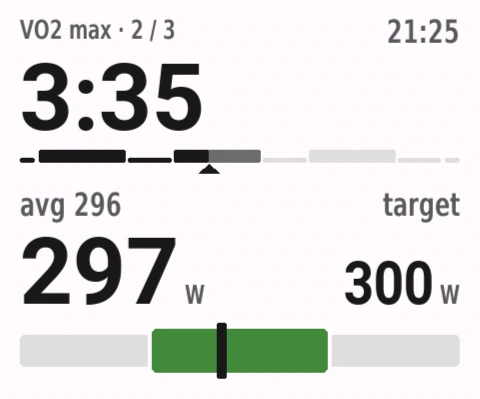
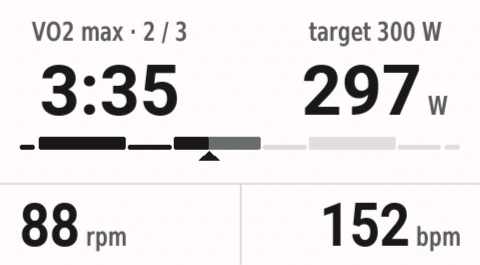
- Half a page shows a compact ride screen: the step, the countdown, the session, your power against the target and the target band.
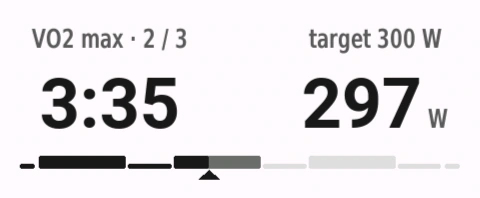
- The large top field or a third of a page shows the countdown and your power side by side, the session, and two of your readings. Where the field is tall enough, the large top field also shows the target band. In a recovery, the target shown is the next interval's. In the last 30 seconds of a step, the readings give way to the next step.
- One row of a four-field page shows the step, its target, the countdown and your power, with the session underneath. In a recovery, it shows the next interval's target instead.
- A strip under the map shows the same, without the session.
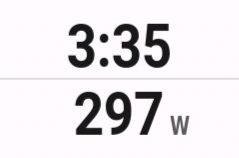
- Half a cell, such as ClimbPro's or the map's, shows the countdown over your power.
- The thin strip on the Edge 550 and 850 shows the countdown and your power on one line.
The colours are the same as on the full page. At the end of the workout, a smaller field shows your compliance: the load you rode against the load planned, or the time if the workout has no planned load. The full ride screen and the Start screen need a page of their own.
Free ride
On a day with no workout, a smaller field doesn't sit empty: it shows your power and your readings in the order you set. A minute after a workout ends, it switches to free ride for the ride home. Without a power meter, heart rate takes the place of power.
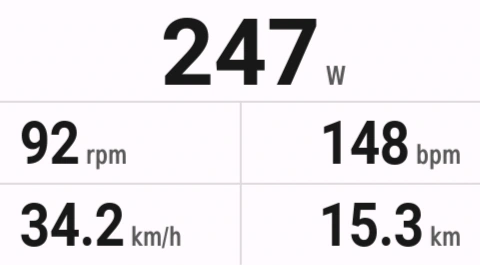
Note: On the Edge 530, 830, 1030 and 1030 Plus, smaller fields show the row, the strip and the cell only, and there's no free ride. Their memory is too small for the rest.
The screens
Every screen is laid out the same way: the step and its clock at the top, your number against the target in the middle, and the next step at the bottom. Each screen comes in a light and a dark theme.
Start
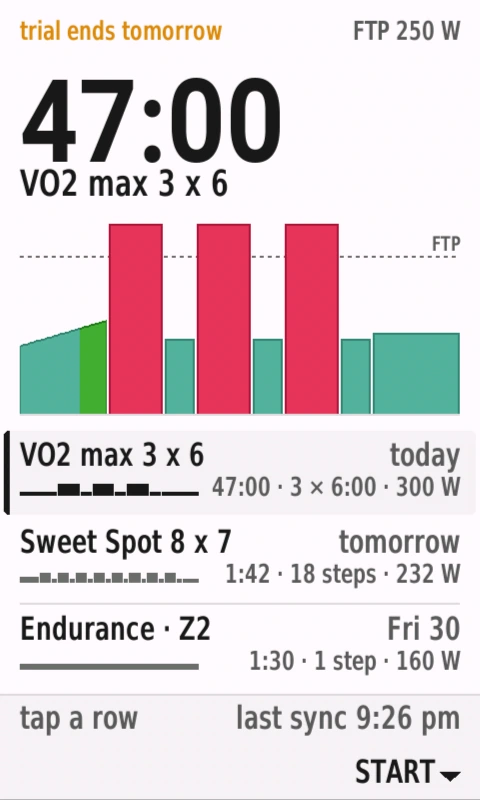
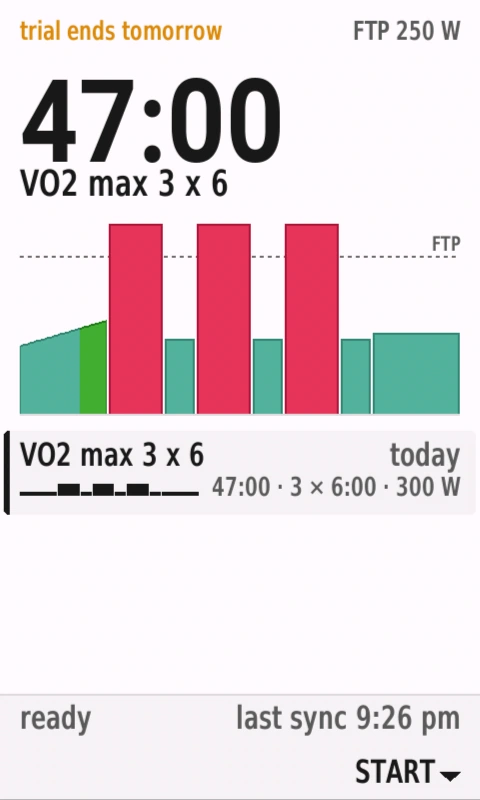
The Start screen shows the chosen workout: how long it takes, its name, and its steps drawn against your FTP in intervals.icu's zone colours, with a dotted line at FTP. Below are your planned workouts, each with its day and a small outline of its steps.
On a touchscreen Edge, tap a row to choose that workout. On an Edge 530, 540, 550 or MTB, the first workout is selected. During the trial, the top line shows how many days are left; the bottom line says when the Edge last synced.
Ride
Each part of the ride screen has one job, so you can read it in a second.
- Time left in the stepThe biggest thing on the screen.
- Your powerLive, or the interval's average, as you choose.
- Readings you pickFour on bigger Edges, two on smaller ones.
- What comes nextAlways at the bottom, so nothing surprises you.
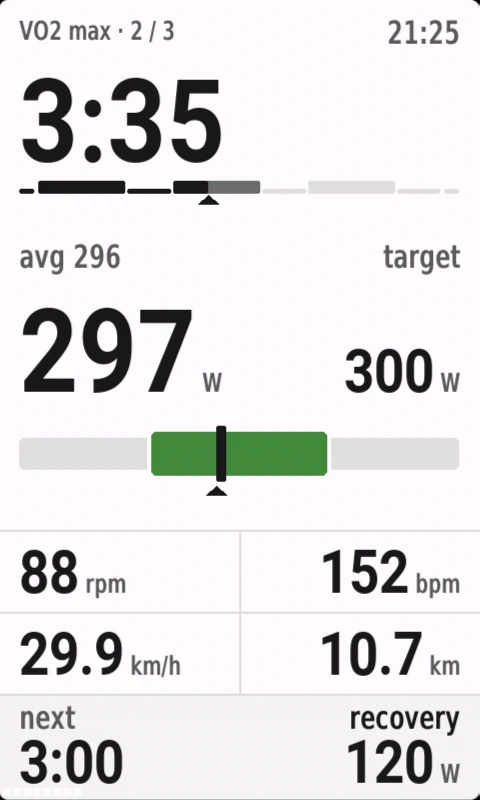
- The whole sessionDone in black, still to come in grey.
- The targetWatts, a range or a ramp.
- Where you sitGreen on target. The whole block turns red over, blue under.
The target band is 95 to 105% of the target. The colour follows your power over the last 15 seconds, so a rough road doesn't make it flicker.
Inside a set of repeats, the session bar at the top zooms in on that set, so each rep is easy to see. For the first five seconds after a work interval, the bottom of the screen shows that interval's average and its time in target.
If your power meter stops sending for eight seconds during a power step, the screen says so.
Handover
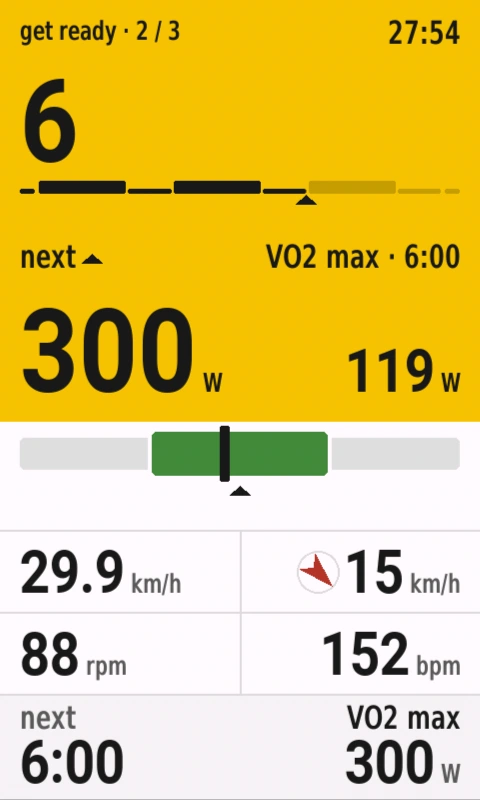
In the last seconds of a step, the screen turns yellow: from three seconds before the end of a short step to ten seconds before the end of a long one. The next target takes the big number, with an arrow that shows whether it's harder or easier, and the seconds count down. The line above it names the next step, its length and, when it has one, its cadence.
Nothing pops up. When the count reaches zero, the new step is already on the screen.
Paused
When you stop the activity timer, the top of the screen turns grey and the clock counts the pause. Your sensors stay live, and the target comes back when you press Start.
Complete
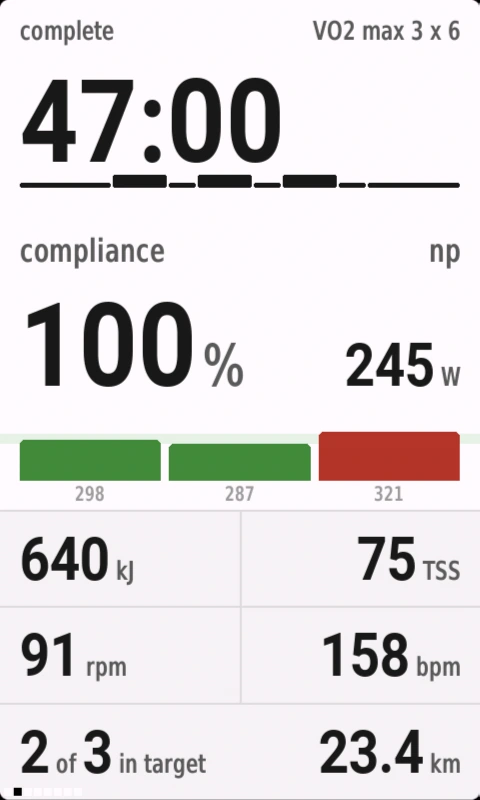
At the end of the workout you see your compliance as one number: the load you rode against the load planned, or the time you rode against the time planned if the workout has no planned load. Below it are a bar for each interval with its average power, your normalised power, kJ, TSS, cadence, heart rate and distance, and how many intervals you rode in target.
Only work intervals are scored. Warm-ups, recoveries and time without a power reading aren't counted against you.
Heart-rate and cadence steps
On a heart-rate step, your heart rate takes the big number and the gauge shows the target range. Targets planned as a percentage of threshold, a percentage of maximum or a zone use the heart-rate zones in your Edge's user profile.
On a heart-rate step without a power meter, the number beside your heart rate tells you what to aim for: “stay under” the ceiling on an easy step, or “get above” the floor on a hard one.
When a step has a cadence target, the target shows next to your cadence for the first 15 seconds. After that, an arrow appears only while you're more than 5 rpm off: up to pedal faster, down to pedal slower.
The lap button
The lap button works the way it does in Garmin's own workouts. Press Lap once to end the step and start the next one; on the last step, it ends the workout. A step planned “until lap” counts up, with “press lap” beside the clock, until you press it.
The Edge's automatic laps never skip a step. Before you start the timer, the Edge doesn't pass the lap button to the field, so you choose a workout by tapping its row instead.
Note: The Edge 530, 830, 1030, 1030 Plus and Explore 2 can't tell an automatic lap from one you press, so IntervalNext ignores laps that come 1 km, 1 mile, 5 km or 5 miles after the last one. If you press Lap at those distances yourself, turn off Ignore auto-lap in Settings.
Notes from your coach
If a step in intervals.icu has a note, it shows when the step begins, after the previous interval's five-second result if there is one. A short chime plays two seconds into the step.
- A note of up to three lines replaces the next-step line at the bottom of the screen for 15 seconds. If it is two or three lines, they're shown one at a time, labelled such as “note · 1 / 3”.
- A note of more than three lines opens over the readings for 10 seconds. If it doesn't fit, it's shown a panel at a time, at least five seconds each, with a label such as “note · 1 / 3”.
To open every note over the readings, turn on Show notes full size in Settings.
Sounds
At the end of each step you hear three short pips, then one longer note into the next step. A higher note means the next step is harder; a lower note means it's easier. A note from your coach has its own two-tone chime.
When the workout ends, you hear a few bars of Mozart's Turkish March. For three rising notes instead, turn off Finish tune in Settings.
The tones follow the Edge's own tone setting. To turn them off for IntervalNext only, turn off Alert tones in Settings.
ERG on a smart trainer
With a smart trainer, IntervalNext sets the resistance for you, so you ride the target power instead of chasing it.
- Turn on the trainer, then pair it with the Edge: go to Menu > Sensors > Add Sensor.
- Start your workout. The trainer holds each power target, ramps included.
The trainer is released on heart-rate steps, on steps with no target, while the workout is paused, and when it ends. Outdoors, without a trainer, nothing changes.
To set the resistance yourself, turn off ERG on a smart trainer in Settings.
Wind and rain
To see the wind, choose Wind for one of your readings in Settings. The reading shows the wind speed in your Edge's units and an arrow for how the air moves relative to the way you're riding. A headwind points down at you; a tailwind points up. In calm air or when you're stopped, it shows the speed without an arrow.
When the chance of rain in the next two hours is 30% or more, the reading shows that chance with a raindrop for one minute in every six.
Indoors with a smart trainer connected, the wind gives its place back to the reading that's there by default: cadence, heart rate, speed or distance.
Note: The weather comes from Garmin, through your phone. When it's more than an hour old the reading dims and shows its age, and after two hours it shows a dash. The Edge 530, 830, 1030 and 1030 Plus show the wind but not the chance of rain.
What's recorded
Your ride is recorded by the Edge as usual. IntervalNext adds four values to every second of the activity file: the target power, the target heart rate, whether you were under, on or over the target, and the step number. Apps that read these values can draw your plan over the ride afterwards.
The 14 days, and unlocking
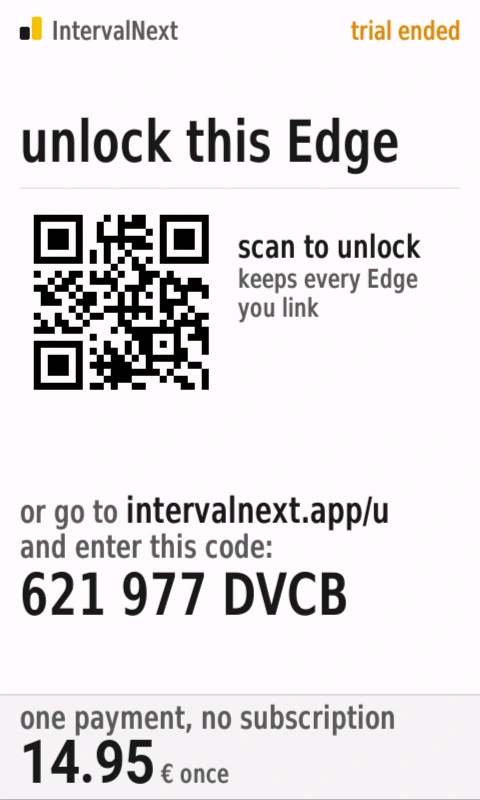
IntervalNext is free for 14 days, then 14,95 €, paid once. There's no subscription. The trial starts when you link your first Edge, and the Start screen shows the days left; the last three are marked in amber. On day 15, the Edge shows the unlock screen instead.
To unlock IntervalNext:
- Scan the QR code on the unlock screen, or go to intervalnext.app/u and enter the code shown.
- Pay with Apple Pay, Google Pay or a card.
- Keep your phone near the Edge. IntervalNext unlocks within a minute, or the next time the Edge and phone connect.
Your licence belongs to your intervals.icu account, not to a device. Link a second or replacement Edge the same way and it's already unlocked, for up to three Edges at a time. You can release an Edge on your account page.
Once unlocked, IntervalNext keeps working without your phone, so a ride with the phone left at home is fine.
If you're not happy, reply to your receipt within 14 days for a refund.
Supported Edges
IntervalNext works on these Edge models:
- Edge 530
- Edge 540
- Edge 550
- Edge 830
- Edge 840
- Edge 850
- Edge 1030
- Edge 1030 Plus
- Edge 1040
- Edge 1050
- Edge 1060
- Edge Explore 2
- Edge MTB
Each model has a layout made for its screen, in Garmin's own fonts. Every model shows a QR code to link and unlock, with a code to enter by hand underneath.
The Edge 530, 830, 1030 and 1030 Plus have less memory than the newer models. On them, smaller fields have fewer layouts and no free ride, the wind reading has no rain chance, and a workout can have up to 50 written steps.
Languages and units
IntervalNext is in English, Bulgarian, Dutch, French, German, Italian, Japanese, Polish, Portuguese and Spanish. It uses the language your Edge is set to, or English if your Edge is set to another language. There's no setting for it. The settings page on your phone follows your phone's language.
- Japanese is available on the Edge 540, 550, 840, 850, 1050, 1060 and Explore 2, and on the Asia-Pacific versions of the Edge 530, 830, 1030, 1030 Plus and 1040.
- Bulgarian is available on the Edge Explore 2, the only Edge that can be set to Bulgarian.
Distances, speeds and heights follow your Edge's own settings: kilometres or miles, metres or feet. In English, the clock follows your Edge's 12-hour or 24-hour setting; in every other language it shows 24-hour time.
Troubleshooting
If IntervalNext isn't in the Connect IQ list on the Edge
The install hasn't synced yet. Open Garmin Connect with the Edge turned on and nearby, wait a minute, then look again. In the Connect IQ app, make sure the device at the top is this Edge.
If the Start screen says “no workout”
Nothing is planned on intervals.icu for the next seven days, or your phone hasn't connected since you planned it. The Edge checks again every five minutes while the screen is showing. If the sync failed, the screen says why, such as the server being unreachable.
If the QR code appears again
Access to intervals.icu was removed, or your account already has three Edges linked. Scan the code again; if three Edges are linked, first release one on your account page. Your licence is on your intervals.icu account, so a paid Edge stays paid.
If a setting you changed has no effect
Make sure you tapped Save in the Connect IQ app. Then open Garmin Connect and wait a minute with the IntervalNext page on the screen.
If the screen says “power meter lost”
Your power meter hasn't sent a reading for eight seconds. Check that it's awake and connected to the Edge. Time without power isn't scored.
If the trainer doesn't follow the target
Make sure the trainer is paired with the Edge as a sensor and shows as connected. If another app also controls the trainer, the trainer follows whichever sent the last command.
If the wind reading shows a dash
Your phone hasn't connected for two hours, or the weather report has no wind reading.
Changelog
Version 1.5
ERG: a paired smart trainer is held at each power step's target. Wind and rain as a reading. One press of Lap moves to the next step, and “until lap” steps count up. Ramps ride as ramps. Coach's notes with their own chime, opening over the readings when they're long. Each work interval's average and time in target after it ends. A wider target band, a cadence arrow, and a session bar that zooms in on the set you're riding. Four readings you choose on the larger Edges, out of 24, including VAM. Your own zone and over-and-under colours. Free ride and new layouts in smaller fields. The Edge 1060, and ten languages. A finish tune.
Version 1.4
Every screen redrawn for each of the eight layouts, light and dark, with the yellow handover. Time in target is scored from what the screen showed.
Version 1.3
The workout queue: up to a week of planned workouts, refreshed every five minutes before the ride. The trial, the pairing code and the unlock screens.